Der Schmale – David Lenaerts’s blog

Flash Platform Experiments

Hacking the Lite pt.2: Fake Shadow Mapping

Tags: , , , , , , , , , ,

fakeShadowsSince I’ve been working on Away3D 4.0 (Broomstick) for the past few months, it was pretty hard to find the energy to keep this blog up to date, and the promised part 2 of Hacking the Lite kept getting delayed. And delayed. And then delayed some more. Having access to the GPU also caused some debate on whether this series would still be relevant enough. However, after looking at my initial goals for it, I decided it is. After all, the idea was to inspire people to start playing around, and to get people to think in terms of using shaders. Most of the concepts outlined here can be used in Molehill as well. And of course, it’s still some time before we can use the GPU in actual commercial projects ;) So on with the show! This part of the series will build heavily upon the previous part, so it’s perhaps a good idea to review that again.

Shadow maps

Casting shadows is often done using shadow maps. In this case, we’d render a “depth map” of the scene from the light’s point of view. This way, we have a texture containing the distances to the objects closest to the light for every projection ray (which is a single pixel in the shadow map). When rendering the scene, we project every point we are rendering to that shadow map. We can then compare the depth value of the point-to-be-rendered with the value in the shadow map. If it is further away from the light, it must be in shadow and should not be lit. This approach works well, but for current versions of Flash, it’s not very feasible. But, since we’re hacking, there’s other options!

Augmenting projective texture mapping

fakeShadowMapping_thumbIf you take a look at the schematic on the left (click to enlarge), showing where a shadow should fall, you can see it’s much like projection mapping. The sphere is being perspectively projected unto the floor plane with the light as the projection’s origin. This is the exact same projection that projects the light texture onto the objects. As you can see, if we project the sphere onto the light’s texture first, and project that in turn to the floor, the shadow region remains the same. As a result, we could actually simply project and draw the sphere into the light map before it is applied to the floor.

Order and form

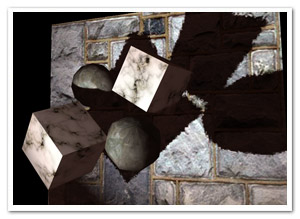
shadowOrderTo render a scene with multiple objects, we have to take care to render things in correct order. We need to draw the objects closest to the light first, because they will obviously be casting shadows on object further from the light. Starting out with a clean light map (ie.containing no shadows), we project it on the closest object and then draw that object’s shadow into the light map. Move on to the second closest object, light it, and draw the shadow again. And so on until the last object was reached.

That works great for convex objects, as long as they don’t intersect. For concave or intersecting convex objects, it’s possible that object A casts shadows on object B as well as the other way around. Since we’re rendering everything in a strict order, that’s simply not a possibility. However, this error should generally be acceptable. Another problem is self-shadowing for concave objects, which is impossible using this “cheat”.

Demo and source

Fake shadow mapping demo: really just an adapted version of the previous one.

The source is again on Google Code!

Leave a comment (2 comments)

Hacking the Lite pt.1: Projective Texture Mapping

Tags: , , , , , , , ,

projectiveExciting times afoot! In the not too distance future, we’ll finally get what we’ve been nagging about! I’m of course talking about Molehill, the new hardware-accelerated API Adobe is working on. If you’re curious what we’re doing with Away3D, take a peak at the demo we did with the guys from Evoflash for Adobe MAX. Old news, I know. Moving on.

All that and more is still some time in the future, and in the meanwhile we need to make do with what we currently have available. As part of a session at AUG XL and FlashPlatform, I gave some examples of what we currently can do with Away3D Lite if we’re willing to get our hands a bit dirty. As examples I explained some effects I did for the Spiral Out demo. Now, it’s time to clean up the code mess and explain a thing or two to a slightly broader audience :)

Basically, what I’ll do is show some things that involve making assumptions that prevent the code from being scalable (ahhh… you got me… that’s just a nice way of saying I’m cheating!). The first step isn’t actually cheating at all, and it’s an old and pretty standard shading technique. However, we’ll need this for part 2 in which we’ll do nothing but cheating, and since no one ever seems to do shaders in Lite I thought it’d be a good way to get started.

This it what we’ll end up with. Not the most attractive demo, but it’ll do. Lengthy explanations ahead, for which the source can come in handy (under examples/projectionMapping) :)

Projective Texture Mapping

projectiveDetailProjective texture mapping, as the name clearly suggests, is a texture mapping technique that mimics a light projecting a texture on objects in the scene (think of a projector slide, a lamp shade’s projections on the walls, …). As I said, there’s nothing new or special about this; it’s been done countless times before. The picture on the right pretty much shows all there’s to it (click to enlarge).

Essentially, we place the “light texture” in front of the light. All we need to do, is draw a line from the position we’re currently shading (the “target point”) to the light (the “source point”) and figure out where that line intersects the plane. Grab the light texture’s colour at that position and multiply it with the object’s base texture colour to get the final shaded colour. We can also incorporate additional shading calculations, particularly normal mapping.

Exactly how we calculate the intersection is up to you. You can do a line-plane intersection calculation, or you can – surprise surprise – use a perspective projection matrix to project the target point onto the texture. So rather than projecting the texture onto the object, we’re effectively projecting the object on the texture first. The latter approach is much more flexible and intuitive, since it’s exactly how a camera projection works (in part 2, we’ll see that this will come in handy too).

Shading in Away3DLite

Away3DLite, minimal as it is, has only very limited support for shading. There’s a Dot3BitmapMaterial that no one seems to know about, though, courtesy of Mr. Bateman ;) I recommend taking a look at that code, just to see how you could implement a custom shader. At a minimum, all you’d need to do is extend BitmapMaterial and override the updateMaterial method (don’t forget to include and use the namespace arcane). In there, you can do anything you like as long as you end up passing a valid BitmapData object to the _graphicsBitmapFill.bitmapData property. For shading purposes, it’s best to keep a second BitmapData object to which we’ll be rendering the shaded version of the texture, leaving the original _bitmap object intact for subsequent frames. Of course, for any advanced shading on BitmapData objects, Pixel Bender is king, so we can run a ShaderJob in there.

Taking a look at the source for the ProjectiveTextureMaterial, that’s pretty much exactly what is happening, with one difference. We’re exposing a manual update method rather than overriding updateMaterial. This seems rather odd (and in this particular case it is) but we’ll need that next time (remember, we’re hacking anyway) ;)

There’s of course a final caveat, in that we don’t have any position information since we just have a bunch of BitmapData objects, no actual geometry. And that is of course something essential if we want to do any projecting at all. For that we can take the same approach as the Away3D Pixel Bender shaders do: position maps. Whereas a normal map encodes the normal for every texel, a position map encodes the object position at that point. In Away3D, the pixel shaders generate a position map automatically from the geometry when a material is created, but in Lite, we’ll settle for creating them manually. This actually makes it possible to add details from a height map, providing the shader with much more detailed topological information than what would have been generated from a bunch of triangles. As a result, the projected map can be subtly displaced as it would on a real uneven surface. It’s not very hard to create position maps procedurally (which is part 3) if you keep in mind that xyz maps to rgb and 0×00-0xff for each colour channel maps to the minimum and maximum bounds of the respective coordinate (so where x == minX, r would be 0).

Demo and source

To see the effect in action, check out the demo. Move the mouse to move the projector, click and drag to move the camera, and use the mouse wheel to move the projector closer or farther from the scene. There’s also a small projection avatar floating around that shows to position and orientation of the projector.

Source can be found in my repo at Google Code.

A long post, which I hope is useful for people. If not, let me know and I’ll keep it more concise next time! :)
And oh yes, happy New Year’s!

Leave a comment (6 comments)

Ray tracing with Pixel Bender using JITB

Tags: , , , , , , , , ,

RTTerrainWith Flash on the Beach behind us and having had time to process everything, I can safely say it may have been the best edition yet. A great way to get inspired and meet old as well as new friends, and every year it becomes harder to leave. So thanks John for organizing yet another kick-ass festival (yeah it’s really more like a festival than a conference ;) ).

One of the things I swear by every year, is that you haven’t experienced Flash on the Beach if you didn’t catch Joa Ebert‘s session, especially since he started to work on his Apparat suite. Needless to say, I was very honoured when he asked me to contribute some Pixel Bender shaders to show his new JITB player running on the GPU. For those not aware of JITB, it’s essentially a lean & mean Java-based Flash player, with all the niceties the Java runtime provides. Read more about it here.

Results

I ended up writing two ray tracers (or rather, ray marchers).

Yeah, yet another quaternion Julia set. I mentioned last time that they look much better raytraced, and I hope you’ll agree. The sound synching is as interesting as I could get it with only left/rightPeak being supported and a limited amount of time :)
Based on the paper “Ray Tracing Deterministic 3-D Fractals” by John C. Hart et al.
Music: Aphex Twin – Xtal

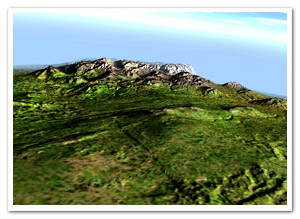
It’s a bit hard to tell, but the terrain marching also has dynamic lighting and shadow casting. The frame rate in the video is actually quite bad, due to the screen capture.
Based on Inigo Quilez’ Terrain Raymarching article

Source

In the spirit of sharing, happy bunnies and double rainbows OMG, I provided the source to these projects, so you can run it yourself.

Get it here!

Of course, you’ll need to run it using JITB. Check Joa’s post on how to get things running.
Also, the download is a bit heavy due to big-ass terrain images (just because, y’know, now I can ;) )

DISCLAIMER: run it at your own risk. If your machine/GPU is known to overheat easily, it’s best not to try it at all (Case in point – sorry dude ;)  ).

Keep in mind, it’s still Pixel Bender compiled for the Flash Player, so all the limitations in that field remain. That of course means no loops. As a result, the Pixel Bender shaders themselves are near-comical (there’s an huge unrolled double loop in the case of the Julia set, for example). I wasn’t aiming for the most optimized code either, but rather show how much difference JITB can make. So please, do take it with a grain of salt :)

Noteworthy, JITB actually recognizes “copy/paste unrolledness” and recompiles it to loops: very cool!

Finally

It’s been great fun to work on it, and getting to annoy Joa with feature requests ;) Seeing how these shaders run in real time is still very thrilling to me, when you consider the normal Flash Player takes up to 2 minutes per frame! It’s not fair to compare CPU to GPU, but still…

In closing, many thanks and humble bows to Joa for inviting me and making my attempts a part of his session, as well as his hard work on Apparat! I encourage anyone to check out his work and contribute!

Leave a comment (5 comments)

Marching Cubes using Pixel Bender: Metaballs / LoFi 4D Julia Set

Tags: , , , , , , , , , ,

juliasetAs promised in my previous post, I would elaborate on some of the things done for the demo. So I’m taking a quick break from work to get this post done :)

Marching Cubes

One thing I did was implement a marching cubes algorithm using Pixel Bender, which is a way to triangulate an isosurface in a scalar field. I had started to write up a whole explanation, but realized it was kinda pointless, as it has been covered plenty of times :) If you’re interested, you’re better off reading up about the subject starting here and here.

Pixel Bender

I know there’s plenty of marching cube implementations in ActionScript out there, but I haven’t seen one using Pixel Bender, so I thought I’d give it a try. I’m using it to calculate the values in the scalar field (at least on the marching cube’s grid corners), and to build the pattern ids needed for triangulation. The benefit of using Pixel Bender is that you can put in any kind of calculation that outputs scalar values, some of which you wouldn’t dare to put ActionScript through. The drawback is that it seems to have some precision problems while doing comparisons (or so it seems), so there’s some missing triangles on occasion.

No transforms, no sorting

Something I’ve realized that’s pretty neat about this algorithm is that you don’t actually need sorting. As long as you make sure the grid is aligned to the “camera” at all times, the triangulation occurs back to front and will already be correctly sorted. This of course means you can’t do any rotations on the triangles, but that’s no big deal. You can simply perform the transformation on the grid coordinates, and let the correct values be calculated for those points. Added bonus, you can do any scaling and translations together with the projection matrix in one call to Utils3D.projectVectors, annihilating the need for any calls to Matrix3D.transformVectors. Result: some extra fps.

Metaballsmetaballs

Metaballs are probably the most iconic example of isosurfaces out there (bar MRI and CT imagery). It was actually my test data for the MC system, but it ended up making a sneaky appearance in the demo (which I still consider a tribute to the undisputed king of ActionScript sticky substances ).

> Metaball demo (click to change textures)

Quaternion Julia Set

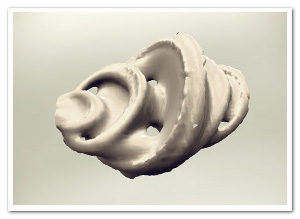
Another example I did was to triangulate a quaternion Julia set, which seems pretty popular lately ;) It definitely looks better raytraced, but I couldn’t resist! I’m using the distance estimator function to produce the grid values (see here), and an epsilon distance as the surface’s isovalue. Since things always look less crap with music, I added some for a change.

> Quaternion Julia Set Demo (might take a while to load the mp3)

Source

The marching cubes thingy, as well as the metaballs example source is up for grabs at Google Code . Enjoy! If you make any surfaces with it, I’d love to see them :)

Leave a comment (11 comments)

More Fresnel fun in Away3D: through the looking glass

Tags: , , , , , , , , , ,

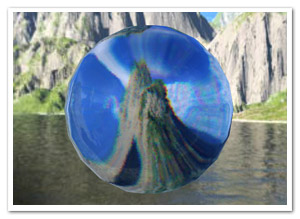
glassBallAs a continuation of an earlier post, here’s a variation of the Fresnel Pixel Bender material. Still obviously inspired by Bartek‘s Unity3D shader, it became a glass material with support for chromatic aberration (what causes the rainbow effect in refracted light). The result could come in handy in some situations, so I thought I’d share and commit it to the Away3D trunk as the GlassMaterial.

The material uses the same environment map to do (fake) refractions and reflections, so it’s not actually refracting the real scene around it. However, if you make a sphere map rendering of your scene, the effect can be convincing enough.

The demo shows a couple of default primitives and several settings of the material (such as glass colour and reflection strength), and also uses a new primitive called TorusKnot (which is a (p,q) torus knot). Consider that a tribute to a demo shown by Ralph during his presentation at FITC Amsterdam ;) . Click to cycle through the different settings, and check the source to see how it all works.

Update: As Makc pointed out in the comments (and rightly so), the refraction looked rather icky, so I updated it that it uses linear sampling. It’s a bit slower but looks much better.

Leave a comment (6 comments)

Fresnel reflective shading with Away3D

Tags: , , , , , , , , ,

fresnel-awayFinally, something new! But no, it’s not any of the bigger things I’ve been hinting at before. However, I’ve been hard at work at those (and other) projects for months, and ended up with tunnel vision and an annoying rut. I really needed to do something smaller again for some immediate visual fun. When Bartek showed me something on Twitter, I decided to take a step back from all the work, dig up some half-year old code and finish it asap. And so I did: that is a Fresnel Pixel Bender shader for Away3D, presented in the FresnelPBMaterial!

I’ve explained it before, but I’ll give a more general explanation this time around. Fresnel shading mimics the way light reflects off of (often translucent) surfaces such as water or glass. Looking head-on, you can see its proper surface (or see through it with refraction). However, if seen from a shallow angle, it reflects light (just imagine looking over a large body of water, or the mirage effect on the road on hot summer days).

Demos

I’ve thrown together some rather random demos to illustrate the point. There’s source for both. (A word of warning: apparently, on some FP10.1 betas, Pixel Bender causes it to throw an invalid input exception, which seems to be bogus.)

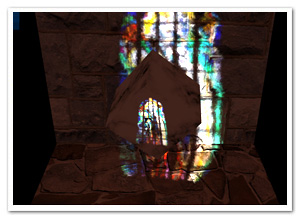
  • Glass and marble head: Yes, the head appears to be floating in the middle of a cathedral of some blurry sort. Click to cycle through different property settings: glass, alien marble (I’m sure that’s a thing), and plain marble.
  • Water surface: Using an animated normal map to illustrate how water could be rendered while using the fake refraction. It also shows the WaterMap util.

Another word of warning: slight implementation details might change in the next few days/weeks, but it should be nothing too dramatic!

I’ll probably be doing something more with this when I have the time, but nothing that would likely make it to the repository :-)

Leave a comment (9 comments)

All new normal map shaders in Away3D with Pixel Bender!

Tags: , , , , , , , , , , , , , ,

pixelshadingIt’s no secret that I like graphics. It’s the main reason why I play video games and it’s the main reason I got into programming. So obviously I was delighted to be invited and to join to the Away3D team last month. Inspired by my earlier Stok3d project (now on the backburner for a bit), I set off to create similar normal mapped pixel shaders, this time in full 3D. After some rough first patches (Stok3d was pretty simple since it only used DisplayObjects, flat planes), things have luckily shaped up, leading up to the first release!

The current state is a dot-release (3.4.2), so the exact implementation might still change while we’re working towards a shiny new 3.5.

The new shaders

So what is the difference with the previous shaders? Using Pixel Bender, the shading is calculated for every pixel in the texture, resulting in much more detailed and realistic lighting or reflections. Each shader requires an object-space normal map, which you can use to add detailed shading information without increasing the polycount of the mesh.

headshader

The shaders come in three flavors: environment map shaders, and single- and multi-pass shaders. Single-pass shaders take one PointLight3D and any AmbientLight3D on the scene to calculate the lighting, whereas multi-pass takes any number of lights of any type (AmbientLight3D, DirectionalLight3D, and AmbientLight3D). Important to note, tho, is that every light adds another pass and will be slower. Of course, if you’re only using 1 light, always use single pass.

Check out the following classes in Google Code:

  • DiffusePBMaterial: Single-pass, adds diffuse lighting to the texture
  • PhongPBMaterial: Single-pass, adds diffuse lighting and specular highlights, with support for specular maps
  • SpecularPBMaterial: Single-pass, adds only highlights – can be used in combination with Prefab3D‘s prebaked lighting to create view-dependent specular highlights
  • DiffuseMultiPassMaterial: Diffuse shading with multiple light sources
  • PhongMultiPassMaterial: Phong shading with multiple light sources

Demosplaneshader

Enough explanations, time for some demos! Right-click to view source:

That’s it, enjoy! Feel free to drop by the mailing list for questions or read the official announcement! For now, I need to get some sleep before Flash on the Beach kicks off :)

Leave a comment (10 comments)

September! Speaking at Adobe User Group BE meeting

Tags: , , , ,

augbeThe summer holidays aren’t even over yet and September already seems like it’s going to be a great month! Apart from the fact that I’m going to Flash on the Beach, there’s also something for us Belgians that’s a bit closer to home: the annual Adobe User Group meeting & barbeque on September 12th! And as it happens, I’ll be speaking there alongside much more impressive names as Seb Lee-Delisle and Niqui Merret :)

What to expect? Here’s my session description:

“In his session, David will walk through some of the experiments and projects he has done over the past year while elaborating on the concepts behind them. Without getting too technical, he will explain his motives, his love affair with Pixel Bender and the big looming question: “Mmkay, but what’s the use?”. Using experimentation as the main thread, he will try to show how going off the beaten path can take you to sweet little places you didn’t expect, and finally, offer a sneak-peak at some of the more useful projects he ended up doing as a result.”

In short, since it’s my first public session, I figured I would give a bird’s view of my philosophy concerning after-work development, and show some cool things I have in the pipeline at the moment (so even if you follow this blog, there’ll be something new to look at ;) ).

Don’t forget to register here if you want to come (and gloat) – and if you do, I’ll see you there!

Leave a comment (1 comment)

Some Flash Pixel Bender performance tips + benchmarks

Tags: , , , , ,

flashpbSince I started playing around with Pixel Bender in Flash, I’ve been trying out some different approaches here and there and learned a thing or two on performance optimizations (and quirks). As many people use PB specifically for its performance, and not much has been written on the subject, I thought I’d share my experiences and back them up with some benchmarks. Some of the things here are pretty obvious, yet others can be surprising and even frustrating.

Remember that this concerns Shaders in Flash Player, not Photoshop or After Effects, and that results could change in future versions. All benchmarks were performed on my crummy pc (AMD Athlon 64 X2 Dual, 2.21Ghz, 2GB Ram, Win XP), using 500×500 data with 4 channels, each performing 10 consecutive kernel executions. The kernel itself is just a read, a multiplication, a division, and a sqrt. ShaderJobs are performed synchronously.

Let’s get the obvious out of the way first (I won’t go into common sense optimalizations too much).

Well, duh!

  • Use 4 channels only if necessary. No transparency? Ditch it.
  • Precalculate recurring constant calculations in Flash and pass them as parameters (such as width*height). Sure, it makes the “interface” of your Kernel potentially harder to read, but since Flash doesn’t support dependents (I hope it will some day), this should be a no-brainer if performance is really important.
  • If only a part of a BitmapData needs to be processed, isolate it into a new BitmapData using copyPixels. Even when using applyFilter, sourceRect is buggy.

Told you it was obvious :p Now, some better ones.

Use ShaderJob, not ApplyFilter

  • ShaderJob (on BitmapData) benchmark: 92-99ms
  • ApplyFilter benchmark: 104-109ms
  • ShaderJob ~ 10% faster

BitmapData is faster than ByteArray is faster than Vector.<Number> !

I’ve seen (and been guilty of) a lot of copying BitmapData into a Vector to harness “the power of Vector”. But look at this:

  • ShaderJob on BitmapData: 92-99ms
  • ShaderJob on ByteArray: 147-172ms
  • ShaderJob on Vector.<Number>: 167-192ms
  • BitmapData is ~40% faster than ByteArray
  • BitmapData is ~47% faster than Vector.<Number>!!

Use BitmapData unless you have no other choice, or if complete floating point precision is important.

Conditionals are expensive!

This one annoys me quite a bit. Imagine you’re doing some calculations that you don’t need to do when alpha == 0 (which, as it happens, is usually the case). It can be a good idea to do them anyway in favour of dropping the alpha == 0 check. For the benchmark, I used values that had alpha set to 0 for about half of the data! Compare results to the previous benchmark.

  • BitmapData: 134-192ms – ~47% speed loss!!!
  • ByteArray: 147-172ms – ~22% speed loss
  • Vector: 192-213ms – ~27% speed loss

In practice, test a version with and one without conditional. The results vary heavily depending on how many times calculations are omitted, and how many calculations are otherwise performed. Still, with half the (although slightly trivial) calculations omitted in this case, it’s stupefying that there’s so much increase in execution speed.

Do not use the input as the output

When using a ShaderJob or ApplyFilter, don’t use the same BitmapData/ByteArray/Vector instance that functions as the source. If you need iteration, you’re better of swapping two buffers. What happens is that Flash Player will need to make a temporary copy of the source, which slows things down.

Edit: The results here were compared to the normal ShaderJob test, while they’re using the alpha test. Percentages have been updated

  • BitmapData: 207-218ms – ~30% speed loss
  • ByteArray: 256-271ms – ~65% speed loss
  • Vector: 276-293ms – ~40% speed loss

Update: Asynchronous ShaderJob

I just tested it, and the results indicate that asynchronous calls (waitForCompletion=false) are slower than synchronous calls. I suppose that’s mainly because of the event handling flow. Another thing I tested was to run 2 asynchronous calls with data of half the size, but it seems only 1 asynchronous ShaderJob can be started at the same time.

That’s it, see for yourself!

In closing, I’ll mention something I usually do but doesn’t seem to have any effect (it’s actually a habit from ActionScript). When reading from the same coordinate multiple times, I often store outCoord() in a variable and use that in the sample function. Well, I tested it, and it doesn’t have any impact at all :)

That’s it, at least for now, I hope it’s helpful! Check the benchmark and its source (the source is in fact pretty ugly, but does the trick). I’d be happy to know what kind of results other hardware yields.

Leave a comment (17 comments)

Slice-based volume rendering using Pixel Bender

Tags: , , , , , ,

volumerendering

After a futile exploration of sparse voxel octree ray casting using Alchemy (which was fun but hopeless), I turned towards another technique for volume rendering, using view-aligned slices. The approach is not much different from the rendering of this older experiment, in which the slices were aligned to the object itself. Again, we’re using the same technique to create and read from the 3D texture (which is static in this case): ie. a set of cross sections placed next to eachother. CT scans are wonderful for this:

cross-section

Not that the image above is just a crop-out, we need a lot more to make it look decent (I used 32 cross sections).

Rendering the slices

slicesWhen using view-aligned slices, they typically won’t be aligned to the texture’s slices, as illustrated in the image to the right (yes, my graphic skills are EPIC!). The point p is any point on any view-aligned slice. We need to know where it is in the texture’s 3D space. This is simply a change of basis transformation, where both bases are defined to have the same origin. In our specific case, eye space is world space, so all we have to do is multiply p with the inverse of the object’s delta transformation matrix. Since the result will usually lie between 2 slices of the 3D texture (as in the illustration), we sample both texture slices with constant x and y coordinates and interpolate the colour values. This approach is not 100% correct, since the interpolation should also be aligned to the view. However, for this purpose, it’s a good trade-off for some extra performance.

As this needs to be done for every pixel on every slice, we’re doing these calculations through Pixel Bender. And that’s how it works in general lines. There’s some translations and scaling going on as well to ensure a uniform and properly centered transformation. If you’re still interested, you can check the source for that. Important to note is that half the slices in the back are actually culled for a worthwhile performance boost. They don’t really contribute all that much to the final image after all.

Demos

Click and drag to rotate the pitbull skull in all demos:

Leave a comment (8 comments)

© 2009 Der Schmale – David Lenaerts’s blog. All Rights Reserved.

This blog is powered by Wordpress and Magatheme by Bryan Helmig.