Der Schmale – David Lenaerts’s blog

Flash Platform Experiments

Speaking at FMX 2013

Tags: , , , , , , , , ,

Albeit with trembling knees, I’m very excited to announce I’ll be speaking at FMX this year, ‘Europe’s most renowned conference on digital entertainment’. It’s an intimidating place to be, with many of my heroes either in the organisation or in the speaker list! Luckily I won’t be alone; the session will be part of the Procedural Animation track, where a couple of dear friends are lined up as well. Curated by good ol’ Frank, the track is focused on rendering and animation outside the realms of gaming and film.

I’ll be presenting an adapted version of A Trick of Light that I tried out on Reasons to be Creative, which deals with an introduction to the world of programming shading and lighting without touching too much on the practical programming side of things. So no code but concepts, intuition and of course a wee bit of maths. This session is not meant for the shader programming veteran, but to provide a starting point for anyone interested in introducing some light to their procedural work.

I hope to see you there, conference passes are ridiculously cheap. I know I’ll be gawking at all the other presentations!

Some other news

While I’m at it, here’s some other updates! I’ve recently joined the motley crew of Psykosoft to work on some upcoming projects. I’m keeping tight-lipped about the details for a while, but maybe some people can already imagine some of the things I’m having fun with.

Alongside that, I’m also working on the Away3D 4.1 beta to implement some optimizations, features and bug fixes. So keep an eye out for that!

As you can guess, busy times!

Leave a comment (0 comments)

Multi-pass Rendering and Cascaded Shadow Mapping

Tags: , , , , , , ,

If you’ve been paying attention to the Away3D blog, you probably already know that the 4.1 alpha has been released today, which has been my main fixation since September (when I wasn’t getting radiation poisoning). As mentioned in the release post, one of the new features is “multipass shading”. If you’re not into 3D rendering programming, you may be asking yourself: “¿Qué?”, so I would like to go a bit more in-depth into the whats, whys, and hows.

Multi-pass shading

Multipass rendering is simply executing different render calls (“passes”) for a single geometry. Strictly speaking, Away3D 4.0 has supported multiple passes since its inception; SubSurfaceScatteringDiffuseMethod caused a depth map pass to be added, and OutlineMethod introduces a new pass to render the outline seperately from the normal geometry. However, all lighting – and methods contributing to the colour of the final output pixel such as fog, rim lighting, etc – happened in a single pass. With shaders being limited in number of instructions and amount of registers, so are the amount of lights that can affect a surface as well as the complexity of any other piece of code, shadow mapping being a common victim. This is where 4.1 introduces multiple passes (hence multi-pass shading) in the form of TextureMultiPassMaterial and ColorMultiPassMaterial. For all intents and purposes, they work identical to their single-pass counterparts (TextureMaterial and ColorMaterial, respectively), but they automatically split up into different passes depending on the amount of lights and the use of shadow mapping. The results are blended together to form a correctly shaded surface. This way, there’s no strict upper limit for lights. Of course, drawing the geometry multiple times comes with its own cost, and you should take care not to go gung-ho just because you can!

Cascade Shadow Mapping

Having shadows in a separate pass greatly increases what you can do to increase shadow quality. Getting shadows to look great is always a bit of a challenge, and one of the techniques that’s popular is Cascaded Shadow Maps (a great explanation here). If you’re too lazy to read the msdn article, here’s the gist of it. Due to perspective projection, fragments close to the viewer generally suffer shadow aliasing, because a texel in the shadow map covers much more screen space closer to the camera than it does farther away. In fact, for distant fragments, the shadow map resolution is often too large since several shadow map texels map to the same screen fragment. So there’s not enough resolution in the front, and possibly too much in the back! Cascaded Shadow Maps try to solve this by splitting up the view frustum and rendering separate shadow maps for each segment. The closer to the viewer, the smaller the frustum segment should be so as to increase the projected resolution of the shadow map.

CSM in Away3D 4.1

As you’ll see in demo code, it’s pretty easy to get this technique to work. Just be sure to use a multi-pass material and assign CascadeShadowMapper to the light and a CascadeShadowMapMethod to the material (this is identical to how NearDirectionalShadowMapper and NearFieldShadowMapMethod work).

// can pass a value up to 4 in CascadeShadowMapper
cascadeShadowMapper = new CascadeShadowMapper(3);
cascadeShadowMapper.lightOffset = 10000;
directionalLight = new DirectionalLight(-1, -15, 1);
directionalLight.shadowMapper = _cascadeShadowMapper;
scene.addChild(_directionalLight);

multiMaterial = new TextureMultiPassMaterial(texture);
multiMaterial.lightPicker = new StaticLightPicker([light]);
// you can also use HardShadowMapMethod, SoftShadowMapMethod, DitheredShadowMapMethod as base method
baseShadowMethod = new FilteredShadowMapMethod(light);
multiMaterial.shadowMapMethod = new CascadeShadowMapMethod(baseShadowMethod);

Away3D splits up the view frustum automatically, but it’s often a good idea to play around with different split ratios yourself. The values with the best results depend heavily on the scene, how close you allow the camera to get to shaded surfaces, and so on. This is done by simply specifying the ratio in the view frustum for each cascade level to reach, “0″ being the frustum’s near plane, “1″ being the far plane. Generally, you’ll want the last cascade level to reach to the far plane, thus passing “1″.

For example, when using 4 cascade levels, you could specify the splits as follows:

cascadeShadowMapper.setSplitRatio(0, .1);
cascadeShadowMapper.setSplitRatio(1, .2);
cascadeShadowMapper.setSplitRatio(2, .4);
cascadeShadowMapper.setSplitRatio(3, 1.0);

A small detail to note: because texture memory is a precious resource, Away3D internally only uses a single texture for all (up to 4) shadow maps.

The demo and source

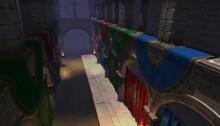
The demo that was built to demonstrate the multi-pass materials features the Sponza model built and made available by Crytek. You can find the original at their download site. It’s a bit of a behemoth, so give it some time to load ;) It allows you to play around with some of the shadow map settings, which should be pretty straightforward. At least, they will be when I get around to writing an upcoming blog post about shadow map filter types. Source for the demo can be found on Github.

If you were at my presentation at Reasons to be Creative (what were you doing, missing out on the great weather outside!) you may recognize the set-up. It’s the same as I used for the deferred rendering demo; however, this is not deferred rendering: we merely re-purposed the demo :)

Get the Away3D 4.1 alpha version in the dev branch on Github.

Leave a comment (3 comments)

The Away3D “dev” Branch

Tags: , , , ,

If you’ve been following the updates on the Away3D blog, you’ll have noticed the updated roadmap mentioning the dev branch on Github. This branch is basically where we’re working to get things towards Beta, so take a look if you’re curious to see where we’re headed. I personally advise anyone to use this branch if you’re starting out with a new project but make a snapshot of the revision you’re working with. Some things will still change and might very well break your code ;)

We’ll put up some proper blog posts introducing new features as we get to Beta, but for now I’ll quickly explain what I’ve personally been working on, and how I broke your existing code ;) I’ve also went ahead and updated the source code for the demos in previous blog posts to match the dev branch, so you can see how it differs concretely.


Death to BitmapMaterial! All hail TextureMaterial!

One of the biggest changes, I think. Favouring composition over inheritance, we deprecated BitmapMaterial, VideoMaterial, MovieMaterial etc. They have been replaced by a single TextureMaterial, which accepts a Texture2DBase object. In practice, this will for instance be a BitmapTexture (VideoTexture etc are still in development). This way, when supporting new texture types you don’t need to extend every type of material that needs to extend this material type, which is especially a mess when you start creating custom materials (and need to extend/duplicate those to support all possible texture types). The same applies for cube maps (fe: BitmapCubeTexture), the normal and specular maps that are set on the default materials, and the view’s backgroundImage (now simply View3D::background). It’s a big change that might annoy many of you, but it’s necessary. With things like ATF support coming up (and who knows what else), things would simply become unmanageable and error-prone otherwise.

Furthermore, there are some “special” convenience textures that can be used for the default materials. For instance, these materials expect a specular map to have the specular strength on the red channel, and the specular power (gloss) on the green. SpecularBitmapTexture allows you to pass two greyscale BitmapData objects (gloss is optional) and composites the data correctly. When using texture splatting, you can use SplatBlendBitmapTexture, which takes 3 BitmapData objects containing the blending value for each splatting layer and places each on the red, blue and green channels as expected by TerrainDiffuseMethod. However, in both cases, it’s usually better to do these things in your offline asset preparation stage and use simpler texture objects instead.


Light Picking

Another rather big change for those working with lights, but one that offers great benefits. Instead of assigning the lights as a static array as before, materials now expect a LightPickerBase object. Right now, that means StaticLightPicker, which in turn accepts the array of lights. Why this extra object? This way, you can create a DynamicLightPicker object that selects the most important lights from the EntityCollector, allowing different lights to be used without reassigning the light array (and as a result potentially invalidating the material). As light collection is often game-engine dependent, providing our own dynamic light picker is not the highest priority. At least it’s good to know the possibility is there, right? ;)


Disposal

Before, most dispose(…) methods accepted a “deep” parameter, which caused “sub-assets” (Geometry of a Mesh, BitmapData of a BitmapTexture, etc) to be disposed as well. While in some cases this saves you from writing a trivial few lines of disposal code, in many cases it just is an open door to invalid state (accidentally disposing a BitmapData used by another BitmapTexture) and ambiguity (what will be cleared, and what will remain uncleaned?). Allowing an object to destroy objects it did not create is poor resource management and generally bad practice in my opinion. Hence the new credo: you clean up what you create!


Ambient lighting

There have been some changes in how ambient lighting works. Before, the ambient and ambientColor of the materials dictated how much ambient light is coming from the lights, rather than how much ambient light is actually reflected by the material. That has been changed, and lights now have ambient and ambientColor properties as well. As a result, ambient light now functions similar to diffuse and specular light. The lights emit it, the material reflects it. It’s usually best to only set ambient light properties on DirectionalLight objects, since ambient light is global. PointLight objects can get culled if they’re not affecting anything in the frustum and their ambient contribution would be dropped as a result.


Other changes and new features

  • Big refactor on how the materials and animations are compiled to facilitate building custom materials
  • Slight restructuring of the render flow to allow more intricate custom renderers
  • Light probes (default materials only support convoluted cube maps at this point)
  • Reduced shadow swimming with shadow mapping
  • RefractionEnvMapMethod for environment-map based refraction mapping
  • AnisotropicSpecularMethod for anisotropic specular highlights
  • Shadow mapping for point lights (HardShadowMapMethod only)
  • AlphaMaskMethod to influence the material’s alpha, optionally based on a secondary UV set
  • Light map methods: DiffuseLightMapMethod to apply light maps as diffuse light, and LightMapMethod to apply it on the final shaded result
  • WrapDiffuseMethod to perform a very cheap fake way for subsurface scattering, as outlined in GPU Gems #1
I hope to scrape together some time to write some things about these new features as soon as possible. A recurring promise, I know, but bear with me here ;)
Update: Forgot to mention that there are also updated official Away3D demos in the examples’ texture-refactor branch (the name is due to a previous branch).
Leave a comment (6 comments)

The Away3D 4.0 Scene Graph Architecture 2: Meshes and Geometries

Tags: , , , , , , ,

It’s time to elaborate on the previous blog post’s topic and investigate one of the most important scene graph nodes: the Mesh. It’ll probably be the object you’ll be working with most, and it allows a form of flexibility that can really provide a benefit to your memory usage and performance. That is, of course, if you know how. I’ll talk more about performance and memory usage next time, for now it’s just important to understand how Mesh works.

Meshes and Geometries

Meshes and Geometry objects are closely related. Geometries provide the – you guessed it – geometry of a 3D object: the vertices, triangle indices, UV coordinates, vertex normals, and what have you. Mesh objects are there to give a Geometry a place in the scene graph (and as such, a position in 3D space), as well as link it to a material. Why bother with the distinction, you may wonder. Why not just place the geometry data inside the Mesh class and be done with it? In many cases, you’d want to use the same geometry in several places. Different monsters of the same type throughout a level, for instance. The Geometry object allows you to save memory and limit the amount of data that’s uploaded to the GPU.

Both Meshes and Geometry mirror each other in that they both contain “sub”-objects (SubMesh and SubGeometry, respectively). Each SubMesh object links to a corresponding SubGeometry object in the Mesh’s Geometry object. Each SubGeometry provides the vertex and triangle data for each part that will make up the entire object. Confused? Check the graph below. The reason for this subdivision is mainly so multiple materials can be used within a single Mesh. Because of how the GPU issues draw commands, materials cannot be assigned to individual triangles in the model. Instead, several SubGeometries are used, and each can be rendered with a different material. This is achieved by assigning a material to the corresponding SubMesh. SubMesh materials are optional; if not provided, the main Mesh object’s material is used for rendering. In other words, the SubMesh material property overrides the Mesh material property for the corresponding SubGeometry.

Time for a practical example. A car Mesh can refer to a Geometry object containing a SubGeometry for the car body and one for the windows. This way, a metallic BitmapMaterial can be used for the car body, and a transparent ColorMaterial can be used for the windows, by assigning the materials to the SubMesh objects.

SceneGraph

The scene graph inheritance structure (black arrows) and the Mesh/Geometry architecture (white arrows)

The Scene Graph in Action

If you’re still a bit confused even after looking at the magnificent chart above (yes, that is the same one as in the previous post – sue me), a demo will definitely help. And what way to better illustrate a hierarchical scene graph than one illustrating a blatant lack of inspiration as well: a mini solar system! Not everything in the source is as pragmatic as it could be, but as it’s done for purely illustrative purposes, I’ll forgive myself just this once. Play around with the source, and things should start making more sense.

Demo

Source

And that’s it for now! Any questions? shoot!

Update

All sources for this post have been updated to use the dev branch of Away3D 4.0: https://github.com/away3d/away3d-core-fp11/tree/dev

Leave a comment (7 comments)

The Away3D 4.0 Scene Graph Architecture 1: Node Types

Tags: , , , , , ,

I’m planning some future blog posts dealing with tips to get better performance out of your Away3D 4.0 (FP11) projects. When working with the GPU, it’s easy to get unexpected slowdowns due to inefficient content. There are a lot of common mistakes and misconceptions that I see popping up time and time again, and I reckon it’s a good idea to try and rid the world of them. Before that, it’s important to understand one of the most central aspects of the engine: the scene graph. It forms the basis of many of the performance tips that will follow, so despite the seemingly trivial nature of the subject, it is important to explain things in proper detail.

The scene graph is essentially the 3D equivalent of the Flash display list. If you’ve worked with Away3D before, or any other 3D engine for that matter, it’s nothing new; every version of Away3D has had a scene graph, even if it was never been called that way, and it’s simply the Scene3D object and all its children: ObjectContainer3D, Mesh, Sprite3D, … It’s the building blocks you use to construct your 3D scene in a hierarchical way that feels natural. There are some differences with older versions of the engine, especially how Mesh objects are constructed, so let’s step through the different objects.

Scene graph objects

The scene graph is made up of objects (nodes) that form a tree data structure. Nodes can be added as a child to other nodes, which makes their transformation (position, rotation and scale) relative to that of their parents’.

  • Scene3D: Essentially, this is the root node of a scene graph. It wraps a root ObjectContainer3D and links it to the spatial partitioning system (more on that in a future post). Whenever a View3D is created, an empty Scene3D is created by default if one is not passed along. Since it’s a root node by design, a Scene3D object cannot be added as a child to other containers.
  • ObjectContainer3D: Comparable to Flash’s DisplayObjectContainer, it is the most basic scene graph node. It can be added as a child to other ObjectContainer3Ds (or subclasses), and in turn it can be a parent of other ObjectContainer3D (or subclass) objects. Despite the name, child nodes aren’t necessarily “contained” by the container in the most literal sense. It merely implies that the child objects’ transformation is relative to that of the parent, much like Flash Sprite objects that are a child of a DisplayObjectContainer. Move or rotate the parent, and the child will move or rotate along. For instance, a rider object can be a child of a horse object so that when the horse moves, the rider will always be in the correct place without having to explicitly update its position. It does not mean – assuming your game is within the bounds of the morally acceptable – that the rider is inside the horse. This may seem like a distinction too trivial to even point out, but it’s a misconception that has managed to confuse a good few people in the past. The results are often wastefully constructed scene graphs and superfluous transformation updates, simply because of this misinterpretation. Every scene graph object that you manipulate to generate your scene (that excludes Scene3D itself), extends ObjectContainer3D.
  • Entity: While it’s an abstract class and you should never use it directly, it’s important enough to know of its existence, especially if you’re looking into creating your own scene graph objects. It forms the base for any object that has a “physical presence”. Entities are collected in the render loop, and are dealt with differently depending on the concrete subclass.
  • Mesh: The most typical renderable 3D object, consisting out of a Geometry that defines vertices, triangles, and all that jazz. It also provides the material with which the object is rendered. Mesh objects will be the central subject of the next blog post, so I’ll keep it brief here.
  • Sprite3D: A so-called “billboard”, basically a 2-triangle plane that always faces the camera. Remember the monsters in old shooters like Doom or Duke Nukem 3D? Sprites, baby!
  • SkyBox: A special case scene graph object, used for faking the sky or environment in a scene. As it’s always supposed to be “as far away as possible”, it can’t be moved and will always center itself around the camera and size itself so it’ll fit within the camera frustum. There’s not supposed to be more than one SkyBox in the scene.
  • PointLight/DirectionalLight: These are light objects that can be used for material shading and casting shadows (DirectionalLight only). Traditionally, lights weren’t part of the scene graph in Away3D, but now they can be added in order to make lights dependent on other objects’ position (fe: the light on a miner’s hat). However, because directional lights are “infinitely far away” to approximate very distance light sources such as the sun, their position is in fact irrelevant. It’s recommended to add them to the scene directly. However, the position in combination with lookAt could be used to create sun cycles, but yeah let’s not go there now ;)
  • Camera3D: Cameras are used to render the scene to a view, and don’t necessarily need to be added to the scene graph (by default, they aren’t). However, it can be convenient if you want to make your camera’s position and orientation depend on another object (a rigid chase camera for instance), which is also a change from older versions of the engine.
SceneGraph

The scene graph inheritance structure (black arrows) and the Mesh/Geometry architecture (white arrows)

See, not that different from what you probably already know! However, the way Meshes are constructed, and how they relate to Geometry objects has changed considerably, and can be an important aspect when creating efficient content. And that’s… for the next blog post!

Leave a comment (3 comments)

© 2009 Der Schmale – David Lenaerts’s blog. All Rights Reserved.

This blog is powered by Wordpress and Magatheme by Bryan Helmig.